JTI - Deploy through a pipeline
Deploy through a pipeline


When everything works locally, you want every push to main to land on your server automatically. In this exercise you will create a small GitLab pipeline with two stages:
integration-test— runs your tests (we will expand this next week when we add automated testing).deploy— connects to your production server over SSH and starts the new version of the application.
1 The .gitlab-ci.yml file
To create a pipeline on GitLab, create a file named .gitlab-ci.yml in the root of your project. (Doing this in the web UI of GitLab is convenient — it gives you live validation.)
Create the two stages — integration-test and deploy. Start with deploy since that is where most of the new things happen (SSH, Docker, environment variables). The integration-test stage can start as a placeholder that just runs echo "tests go here" for now — next week you will fill it with real tests.
A couple of things that usually trip people up:
- The GitLab runner needs access to your private SSH key. Store it as a CI/CD variable (see below) — never commit it.
- The runner also needs to trust your server's host key. See "Verifying the SSH host keys" in the GitLab documentation.
Example project - .gitlab-ci.yml
Pipeline environment variables
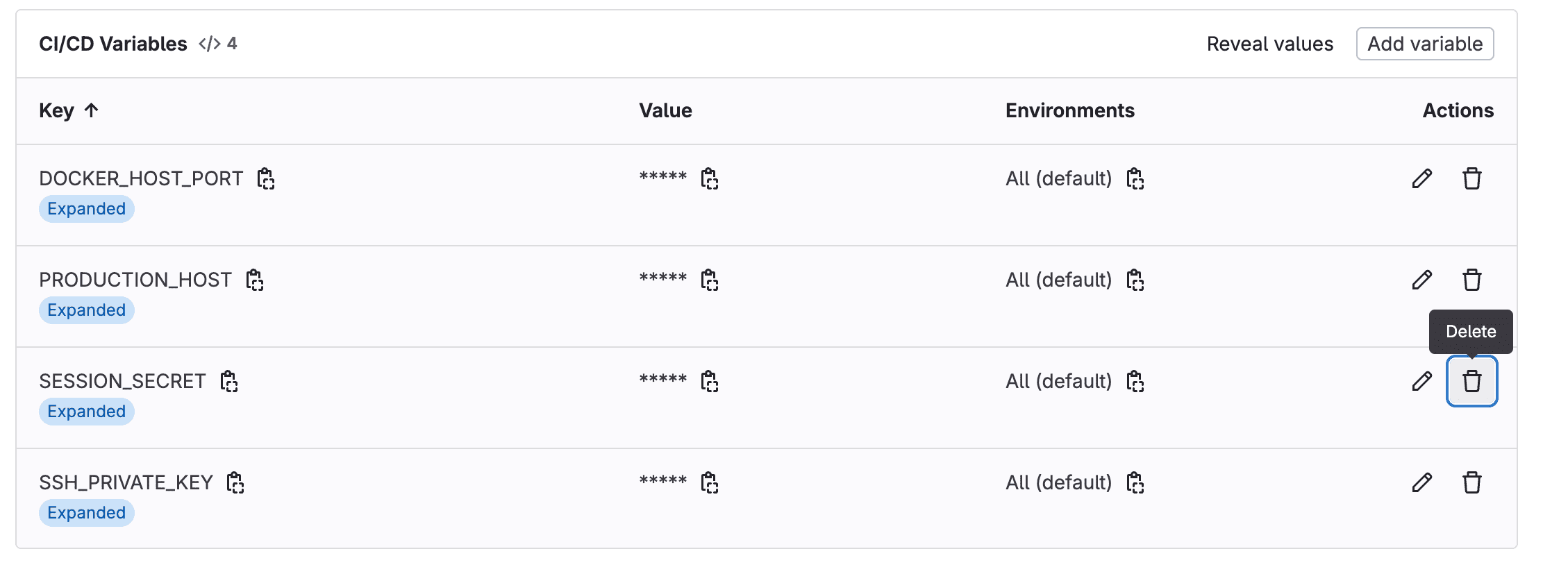
Set the following variables under Settings → CI/CD → Variables on your GitLab project:
PRODUCTION_HOST— IP-address of the production server.SSH_PRIVATE_KEY— private key used to connect to the server.SESSION_SECRET— used by Node and baked into the container.DOCKER_PORT— port to start Docker on. (In our setup the server is mapped to port 80.)
2 Validate your pipeline
Open CI/CD → Editor and click Validate. From the same screen you can also visualize the pipeline.
To run the pipeline:
- Push a new commit to the project, or
- Click Run Pipeline under CI/CD → Pipelines.
If a job fails, open it and read the command-line output — the actual error is almost always in there.
Make a small visible change (a CSS color, a heading) and wait for the pipeline to finish. Then click Deployments → Environments to get the link to your running app and confirm the change is live.
3 Done
Open PRODUCTION_HOST in your browser — you should see the JTI application.
You now have a CI/CD pipeline for your application: develop locally, push to main, and the new version deploys automatically.
4 Troubleshooting
If the pipeline fails, work through these in order:
- Read the job output first. Click the failed job in GitLab — the error is almost always in the log. Most problems are SSH, Docker, or environment variable related.
- SSH issues. Double-check that
SSH_PRIVATE_KEYis correctly set (no extra spaces or missing line breaks) and that the host key has been added toknown_hosts(thessh-keyscanstep in the example handles this). - Docker issues. SSH into the server manually and run
docker psto see if the container is running. If it is but the app doesn't respond, checkdocker logs <container_id>. - Environment variables. Verify that all four variables (
PRODUCTION_HOST,SSH_PRIVATE_KEY,SESSION_SECRET,DOCKER_PORT) are set in GitLab's CI/CD settings and that your application actually reads them.
5 How this maps to Vercel and Render
If you have deployed apps on Vercel or Render before, you have already been a customer of a pipeline like this one — they run one for you behind the scenes. This exercise shows you what is behind their "deploy" button.
| What you build here | Vercel / Render equivalent |
|---|---|
.gitlab-ci.yml integration-test job | .github/workflows/ci.yml running tests on push |
.gitlab-ci.yml deploy job (SSH + Docker) | Vercel/Render's build & deploy platform (hidden) |
| You own the VM and every step | They own the infrastructure; you only own the test gate |
You can absolutely add a testing stage to a Vercel/Render flow — typically through GitHub Actions:
Then gate the auto-deploy on the check passing:
- Vercel — Settings → Git → Ignored Build Step (or Required Checks on Pro plans) tells Vercel to skip the deploy when this workflow fails.
- Render — enable branch protection in GitHub so the deploy webhook only fires once the check has passed.
What is portable from this week: the test gate itself — same idea on GitLab, GitHub Actions, or any CI system. What is not portable: the deploy step. On Vercel/Render that step is hidden from you. Here you write it yourself, line by line — and that is the part worth understanding.

